

Lineup Builder is a workbench for people who do not just read lineups but put them together: editors, analysts, channel authors - anyone who needs to turn a club tweet into a readable image or a clean block of text in a couple of minutes. You open it with the Builder item in the top menu. It is available to signed-in Lineuptoday users, with the same login - no separate account needed.
The key difference from a normal match page is that both squads always sit side by side, in one row. You compare them instead of scrolling from one to the other. Everything that comes from the squad list - minutes, age, position, goals, assists, cards, market value - is filled in automatically. All you do is mark who starts today, who is on the bench, and who is out and why.
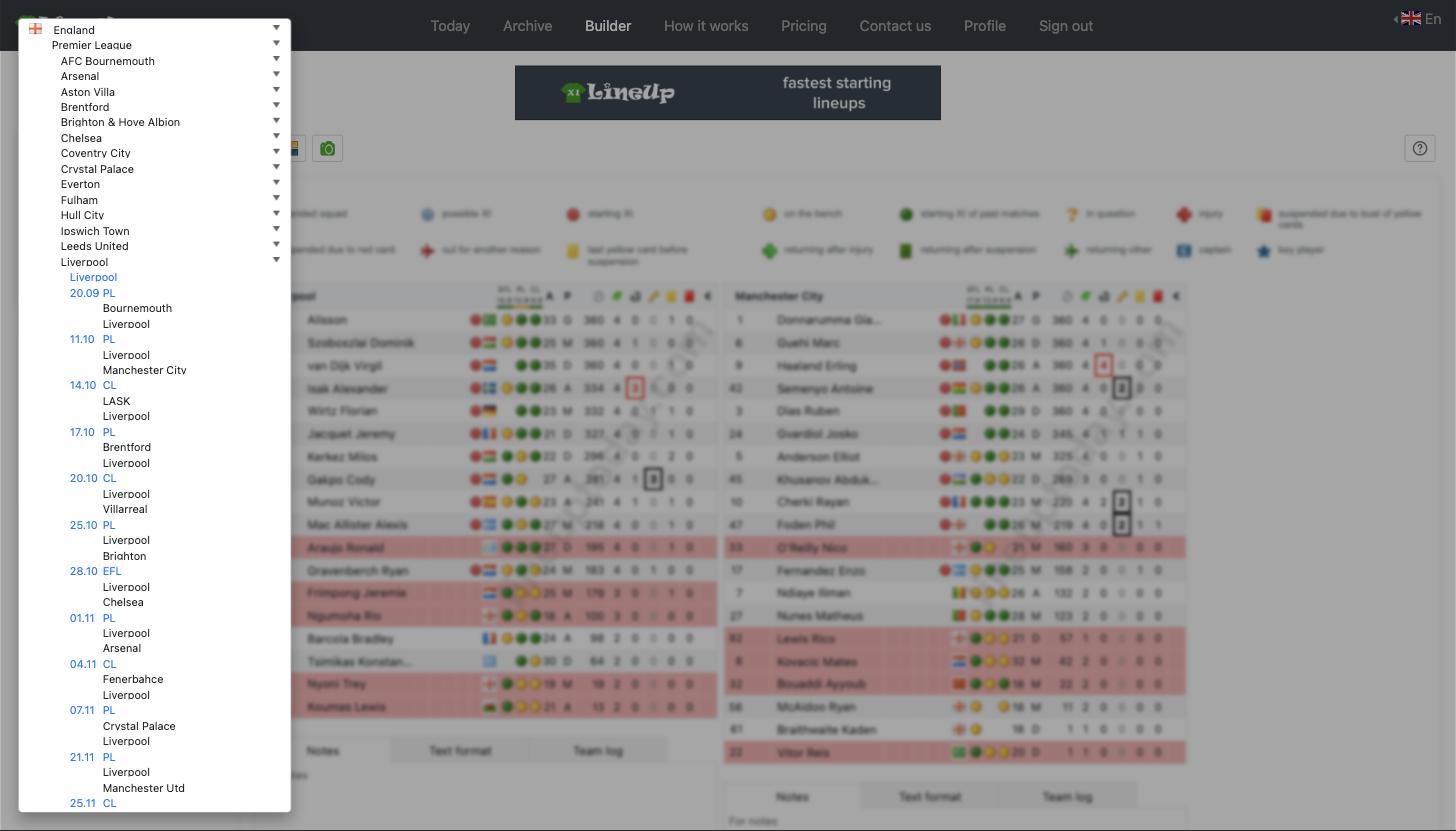
The Select match button in the left menu opens a tree: country - competition - team - match. For the chosen team you see both the upcoming game and the rest of the calendar with dates and competition codes, so a lineup can be prepared in advance.
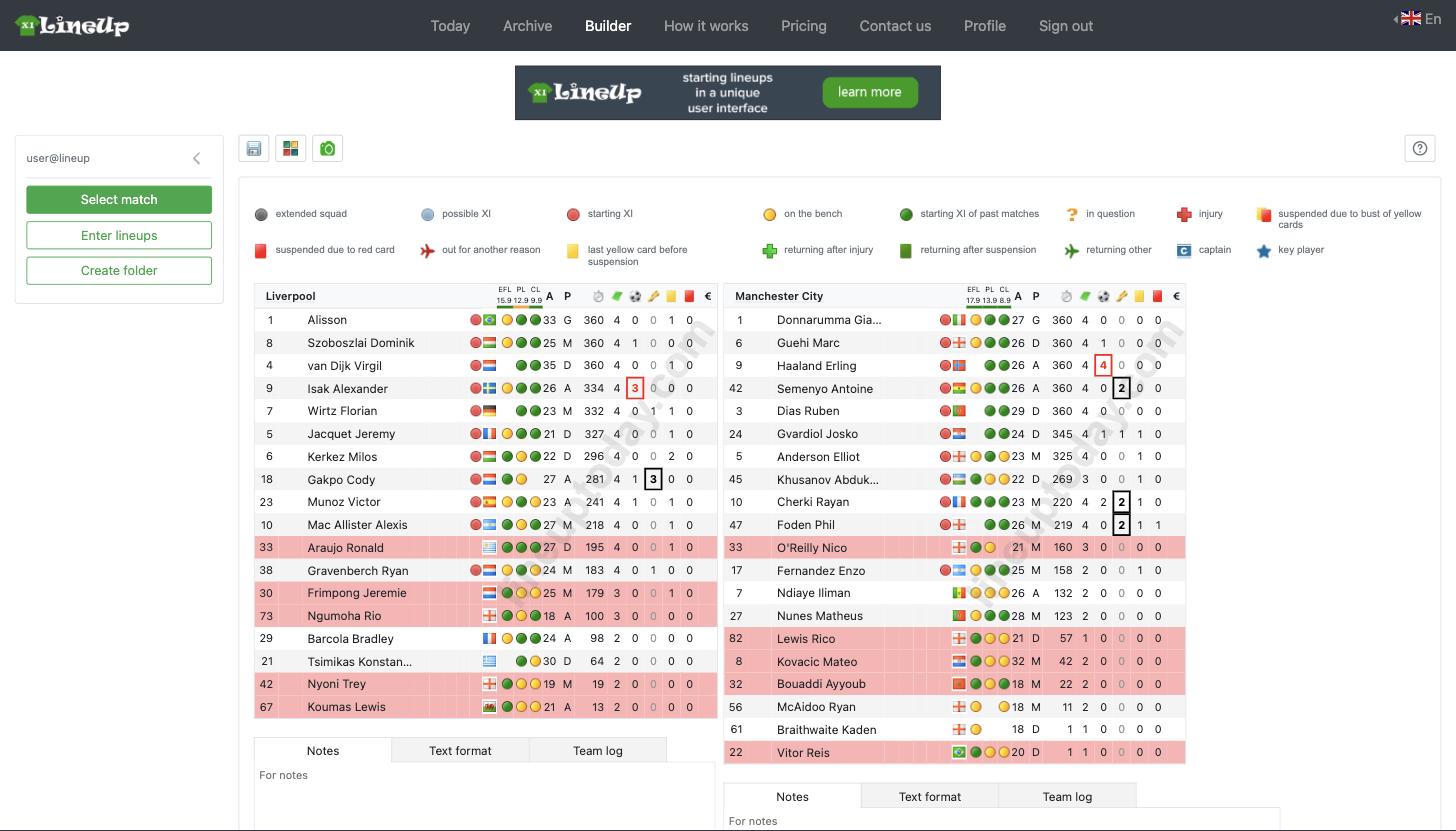
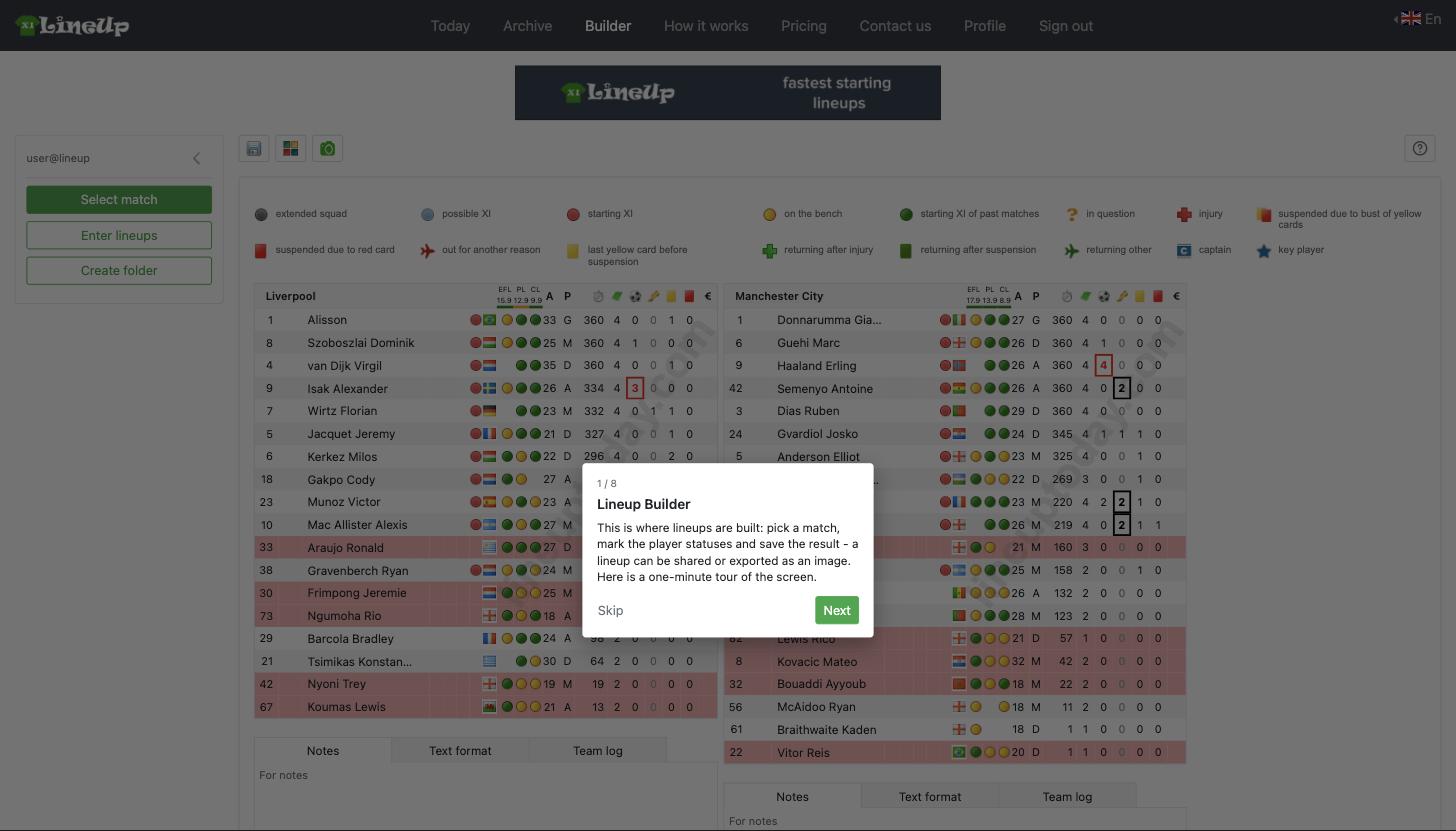
Once a match is open, both squads are shown. The legend on top explains the circle colour (which part of the squad a player belongs to) and the icon (the player's condition). Each row then carries the shirt number, name, nationality, circles for the previous matches, age, position, minutes played, appearances, goals, assists, cards and market value.
Rows highlighted in red are players who started the previous match and did not make today's starting XI. That is the rotation everyone opens lineups for.
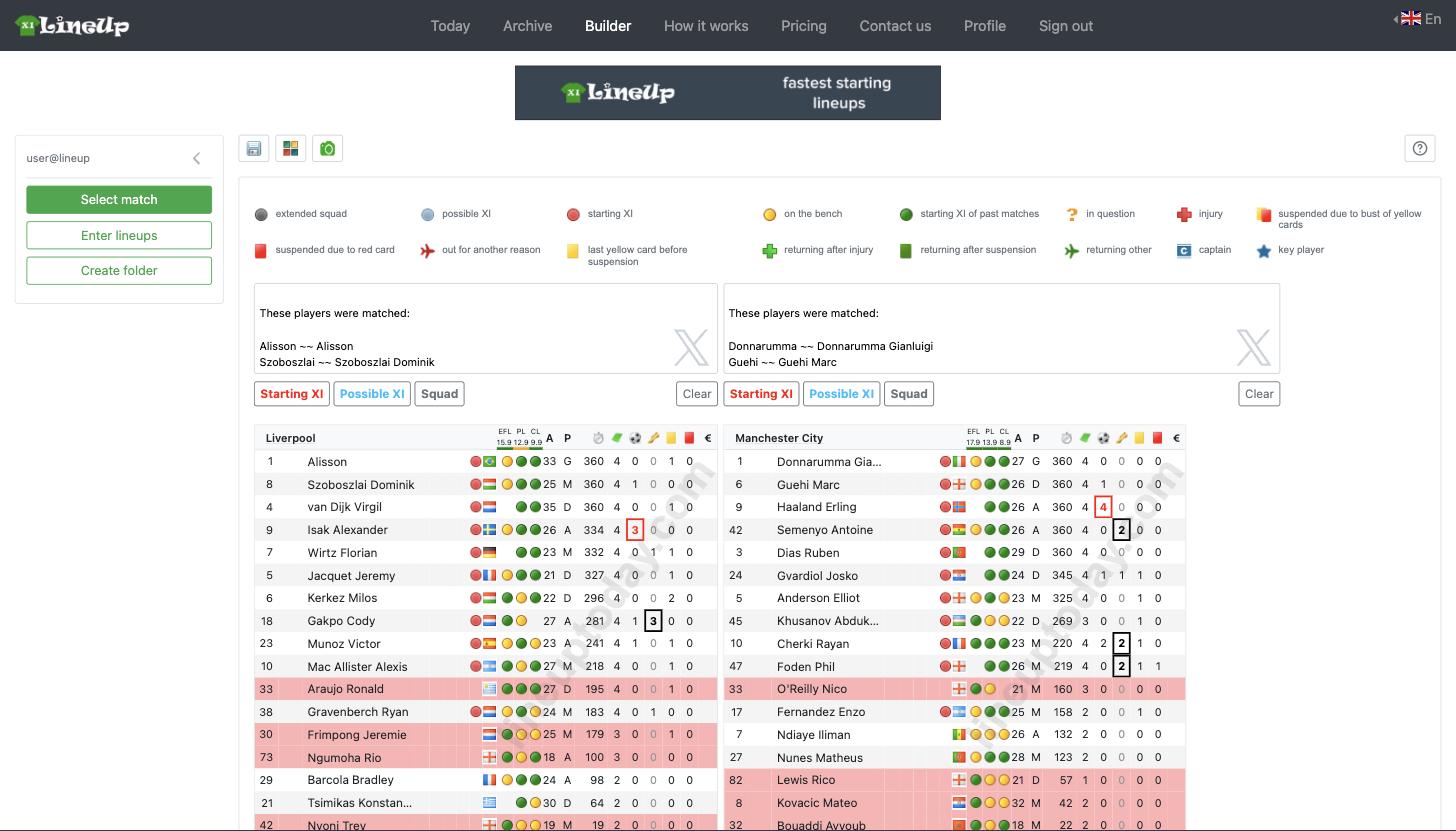
The Enter lineups button appears in the menu together with the match. It opens a panel where a lineup from a tweet or any other source is pasted as a plain list - separated by commas, semicolons, dashes or line breaks. The format does not matter.
The builder matches the pasted names against the squad itself, even when the source spells them differently: with diacritics, surname only, or with the first and last name swapped. Whatever it matched is listed ("These players were matched"), and whatever it could not find is listed separately so you can fix it by hand.
Three buttons decide where the pasted list goes:
Starting XI - the confirmed starting eleven (red circles).
Possible XI - the expected lineup while the official tweet is not out yet (blue circles).
Squad - the extended matchday squad (grey circles).
Clear - empties the input field.
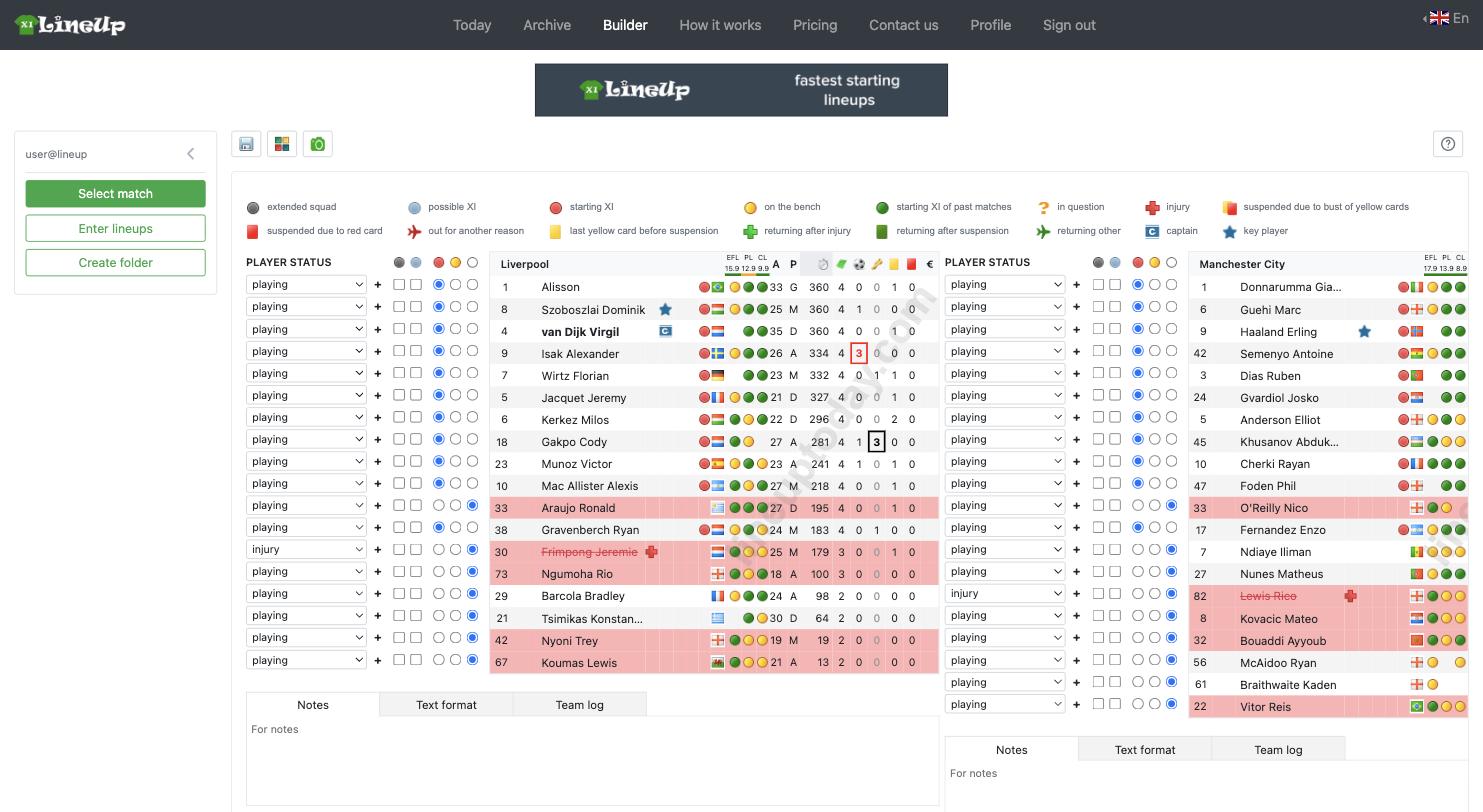
The second button in the top menu shows and hides the status panel. A status dropdown and a set of squad radio buttons appear to the left of every name.
Available statuses: playing, in question, injury, red card, yellow/red, last yellow, out (other), return (injury), return (suspension), return (other). The "+" button next to the dropdown opens a second status for the same player - captain and key player are set there.
The radio buttons move a player between squad, possible XI, starting XI and bench - without pasting the list again.
The status you pick shows up in the squad straight away. In the screenshot below van Dijk is marked as captain (the "C" icon), Szoboszlai as key player (the star), and Frimpong is set to injury: his name is struck through in red and a cross appears beside it.
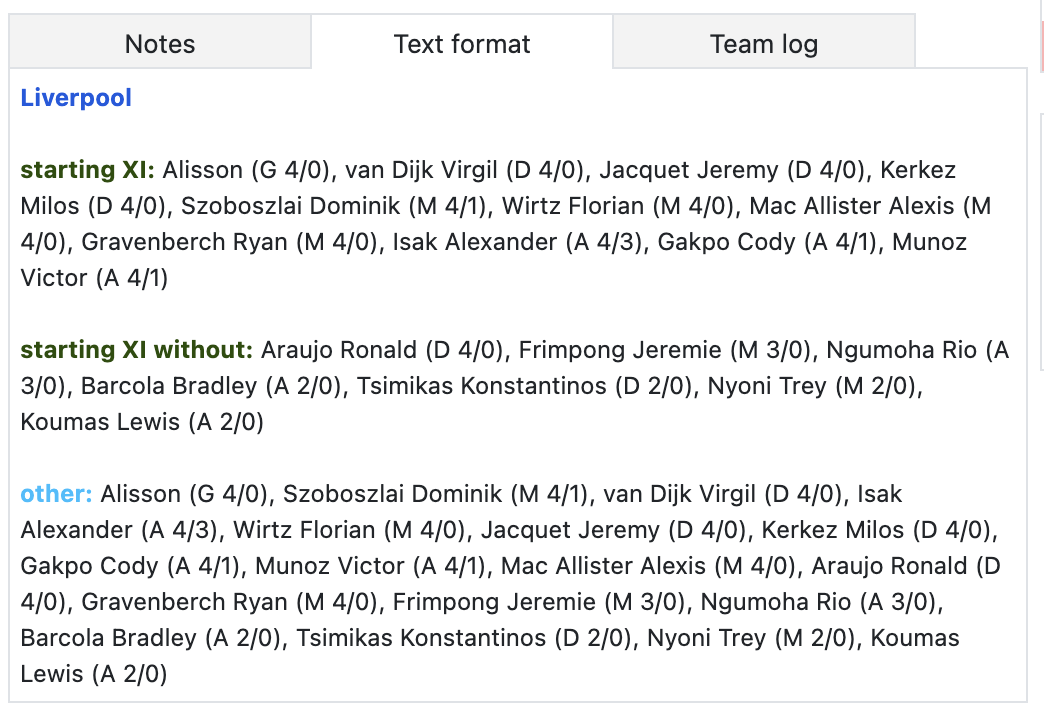
There are three tabs under each squad. Notes is a free text field for your own comment on the team. Team log keeps the history of changes. Text format gives a ready-to-copy block: the starting XI, the regulars left out of it, and the full squad. Position, appearances and goals are shown in brackets. This block can be pasted into a post or a chat as it is.
The top menu holds three buttons. The first one saves the match: it shows up in the left menu under "My matches" and can be reopened later. Create folder lets you sort matches your own way - by competition, round or matchday; a folder gets a name and a flag.
The third button takes a screenshot of the lineup and hands it over as a file straight away - an image ready to publish, with no cropping and no image editor.
If the squads need more width, the left menu collapses into a narrow strip with the arrow in its header. The choice is remembered.
The question-mark button in the top menu starts a short eight-step tour: it highlights match selection, lineup entry, folders, the top menu and the status panel one by one. It can be restarted at any time.
Open the tool: Lineup Builder.